Getting Started
This guide walks you through everything you need to go from browsing available workflows to executing and monitoring your first run. By the end, you'll have created a Workflow Instance, launched a Workflow Run with custom configuration, and know how to retrieve results and clean up when you're done. If you're not yet familiar with the core concepts — definitions, instances, and runs — check out the Overview first.
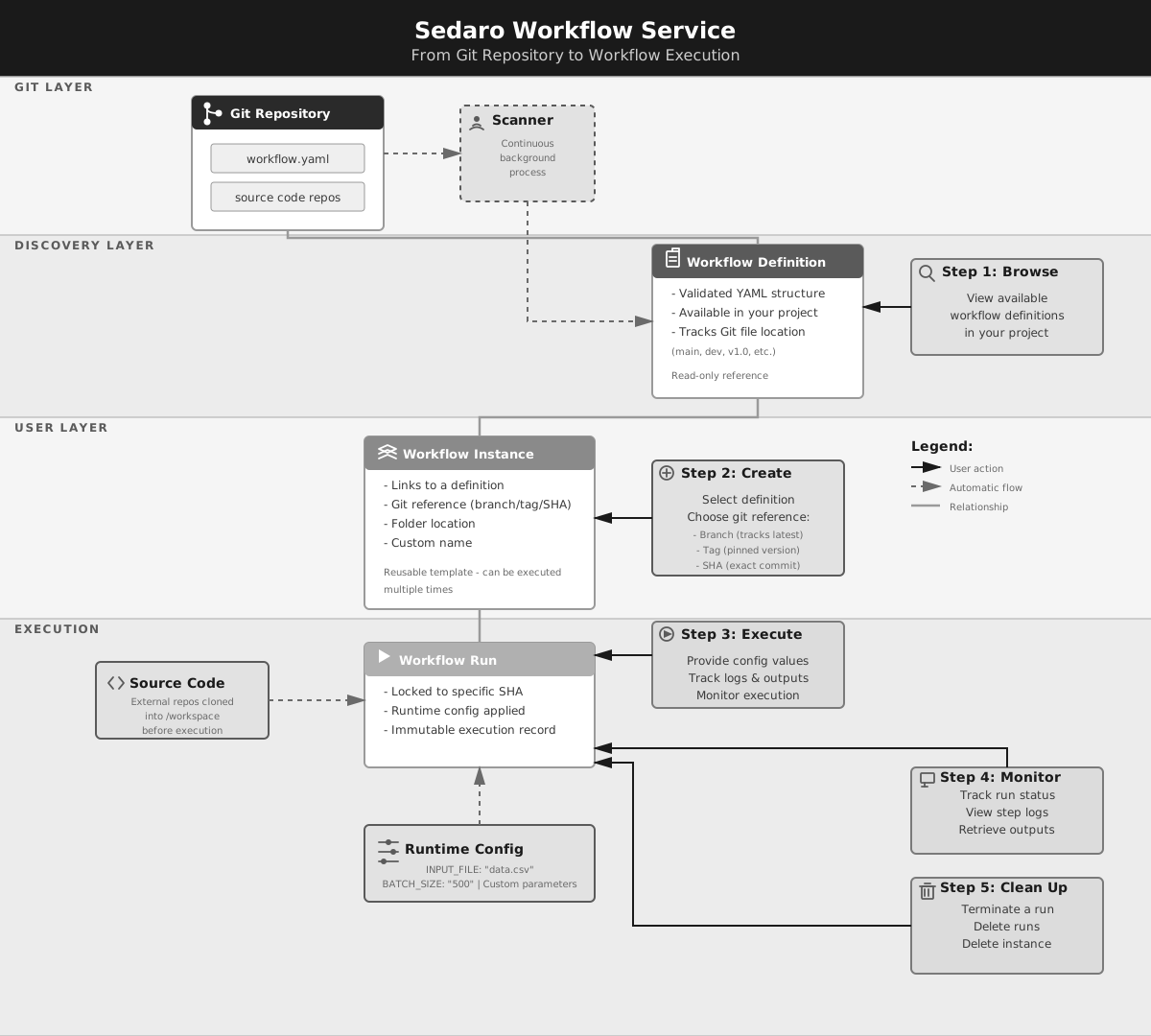
Step 1 — Browse Available Workflow Definitions
Each Workflow Definition in your project corresponds to a validated workflow.yaml file discovered from a connected Git repository. Use the List Workflow Definitions endpoint to see what's available:
GET /api/workflows/v1/definitions?project={projectId}
To inspect the details of a specific definition, use the Get Workflow Definition endpoint:
GET /api/workflows/v1/definitions/{workflowDefinitionId}
Step 2 — Create a Workflow Instance
Select a definition and create an instance by specifying:
| Field | Description |
|---|---|
instanceName | A name for your instance (must be unique within the folder) |
workflowDefinitionId | The definition you want to use |
folder | Where to store the instance (must be in the same project as the definition) |
gitReference | Branch name, tag, or commit SHA (defaults to the definition's default branch) |
Use the Create Workflow Instance endpoint:
POST /api/workflows/v1/instances/
{
  "instanceName": "My-Simulation-Pipeline",
  "workflowDefinitionId": "...",
  "folder": "...",
  "gitReference": "main"
}
Before executing, confirm the instance has loaded its content successfully with the Get Workflow Instance endpoint:
GET /api/workflows/v1/instances/{workflowInstanceId}?showContent=true
Wait for "contentStatus": "ready" before proceeding.
Step 3 — Execute the Workflow
Use the Create Workflow Run endpoint to start an execution. You can optionally override any config parameters defined in the workflow YAML:
POST /api/workflows/v1/control
{
  "workflowInstanceId": "...",
  "config": {
    "INPUT_FILE": "my-bucket/custom-data.csv",
    "BATCH_SIZE": "500"
  }
}
If you don't provide config overrides, the workflow uses the default values defined in the YAML.
Step 4 — Monitor and Retrieve Results
Track progress and retrieve results using the Get Workflow Run endpoint:
GET /api/workflows/v1/control/{workflowRunId}
A run progresses through these states:
Queued → Pending → Running → Completed / Failed
The response includes step-level status for each step in the pipeline, log URLs for each step, and outputs produced by the run (string values or artifact URLs).
Step 5 — Clean Up
Use the Terminate Workflow Run endpoint to stop a run without deleting it, the Delete Workflow Run endpoint to remove a run, or the Delete Workflow Instance endpoint to remove an instance and all its associated runs.
# Terminate a running workflow without deleting it
POST /api/workflows/v1/control/{workflowRunId}/terminate

# Delete a run
DELETE /api/workflows/v1/control/{workflowRunId}

# Delete an instance (also deletes all its runs)
DELETE /api/workflows/v1/instances/{workflowInstanceId}
Runtime Configuration
Workflows can expose configurable parameters that you set at execution time — without modifying any static YAML definition. These are defined in the workflow's config section and referenced by steps as environment variables.
Example — defined in workflow.yaml:
config:
  - name: INPUT_FILE
    value: 'default-bucket/data.csv'
    type: artifact

  - name: BATCH_SIZE
    value: '100'
    type: string
Overriding at runtime:
POST /api/workflows/v1/control
{
  "workflowInstanceId": "...",
  "config": {
    "INPUT_FILE": "my-bucket/custom-data.csv",
    "BATCH_SIZE": "500"
  }
}
If you don't override a value, the default from the YAML is used.
Source Code Dependencies
Some workflows automatically clone external source code repositories into the /workspace folder before execution. This is configured in the workflow YAML by the workflow author — as an end user, you just need to ensure the required repositories are accessible to your project. The workflow service will validate that all dependencies are available before allowing a run to start.
Permissions Summary
| Action | Required Permission |
|---|---|
| Browse workflow definitions | Project read |
| Create / delete instances | Project write |
| Start a workflow run | Project execute |
| View run status and logs | Project read |
| Delete a workflow run | Project write |